The pattern browser at /patterns is the core of EffectTalk. It's where 300+ production-ready Effect patterns live, organized so you can find what you need without scrolling a flat list.
This post walks through how to use it: search, filters, sorting, pattern cards, and the detail view. If you haven't visited the patterns page yet, open it in another tab and follow along.
The Layout
On desktop, the browser uses a two-column layout: a sidebar on the left for search and categories, and the main area on the right for sort controls, active filters, and the pattern grid. On mobile, the sidebar stacks above the grid.
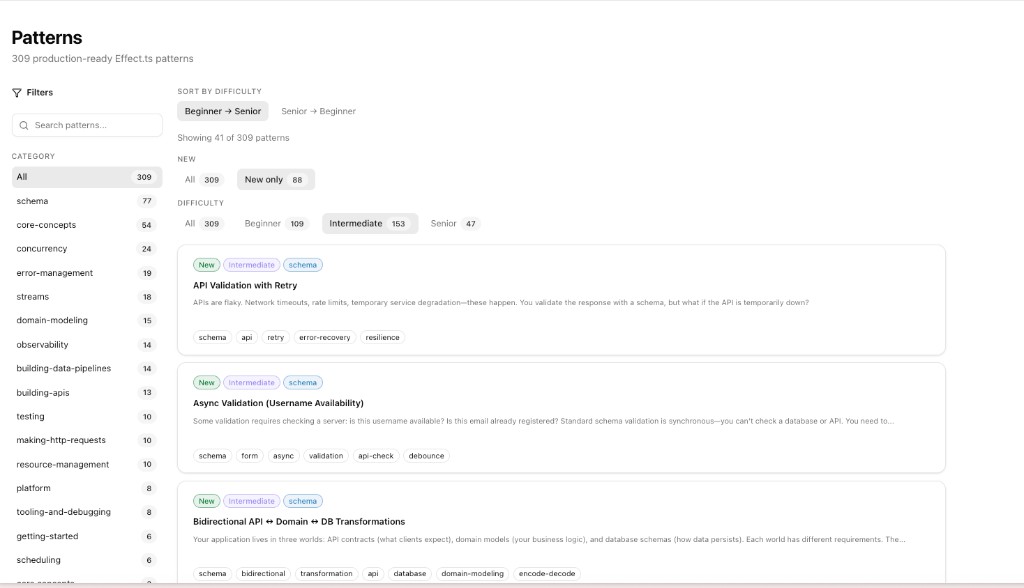
At the top of the main area you'll see the live count (e.g. "Showing all 309 patterns"), which updates as you apply filters.
Search
The search bar sits at the top of the sidebar. Type anything and results update immediately — no submit button, no page reload.
Search matches against three fields: title, description, and tags. It's case-insensitive and matches substrings, so typing "retry" will find patterns with "retry" in the title, "retrying" in the description, or a "retry" tag. A small X button appears to clear the search when it's active.
The URL updates as you search (e.g. ?q=retry), so you can bookmark or share a filtered view.
Filters
Below the search bar are category filters. Each category shows its pattern count in an orange badge.
Click a category to filter. Click it again to deselect. When filters are active, a "Clear all" option appears so you can reset everything at once.
The main area has three more filter rows:
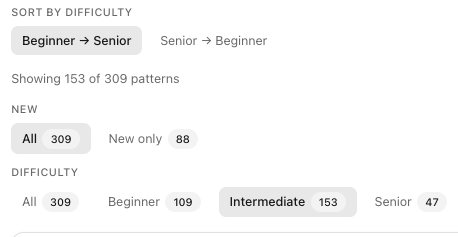
- Sort by difficulty. Two options: "Beginner → Senior" (default) and "Senior → Beginner." This changes the order of the grid, not which patterns are shown.
- New. Toggle between "All" and "New only." Each shows a count so you know what you'll get before clicking.
- Difficulty. Filter to Beginner, Intermediate, or Senior. Each shows its count. Click again to return to "All."
All filters compose. You can search for "stream," pick a category, set difficulty to Intermediate, and sort senior-first. The count updates live, and the full state is reflected in the URL as query parameters — so it's shareable and bookmarkable.
Pattern Cards
Each pattern in the grid is a card. Cards are dense on purpose. The goal is to show enough information that you can decide whether to click without opening the detail page every time.
From top to bottom, a card shows:
- Badges. Up to three: a green "New" badge, a purple difficulty badge, and a blue category badge.
- Title. The pattern name, linked to the detail page.
- Description. A one-line summary (truncated if long).
- Goal (optional). If the pattern includes a Goal, Rationale, or Key Insight section, the card extracts it and shows a short "why" line.
- Code previews. If the pattern has both "Pattern" and "Anti-pattern" examples, the card shows both with syntax highlighting. Pattern is marked green; anti-pattern is marked red. If there's only one example, it shows that.
- Tags. Outlined tag badges for topics like "error-handling," "streams," etc.
The whole card is clickable.
The Detail View
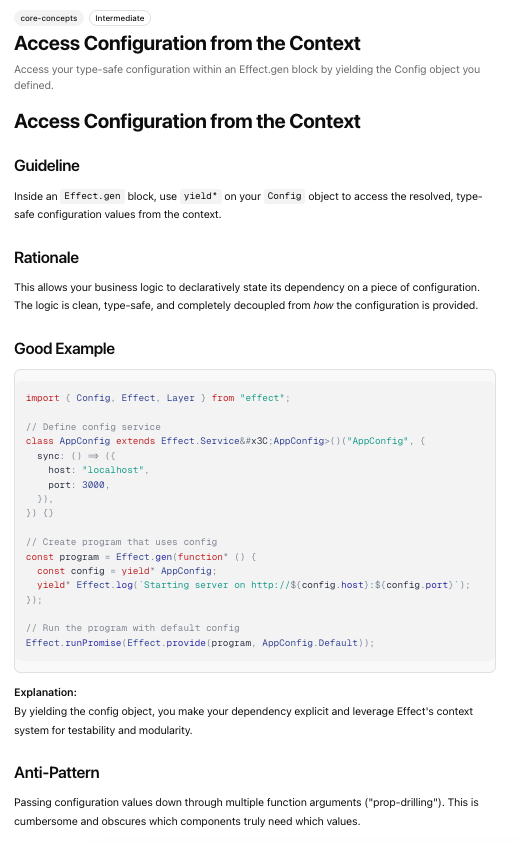
Click a card and you land on the full pattern page at /patterns/{id}. The detail view shows the complete pattern content: full prose explanation and all code blocks with syntax highlighting.
The header includes the same badges (New, category, difficulty) plus the full title and description.
If you arrived from a guided tour lesson, the back button takes you back to the tour flow. Otherwise it links back to the patterns list.
Tips for Getting the Most Out of It
- Start with difficulty. If you're new to Effect, filter to Beginner and sort Beginner-first. The levels are meaningful: Beginner covers core concepts, Intermediate leans into composition and services, and Senior gets into advanced concurrency, resource management, and architecture.
- Use search for problem-solving. When you're stuck on a specific problem (retry logic, resource cleanup, error channels), search first. Tags and descriptions usually surface the right pattern faster than browsing.
- Bookmark filtered views. Because the URL reflects filter state, you can bookmark useful slices of the library.
- Read the anti-patterns. The "wrong way" examples are educational. They show what to avoid, and why the Effect approach is better.
What's Next
The library isn't static. We're adding patterns regularly — especially in areas like testing strategies, streaming, and metrics. New patterns get the green "New" badge, so you can find them quickly with the "New only" filter.
Head to /patterns and start browsing. If you find something missing or wrong, open an issue on GitHub.